

Reports gives you a quick view of how many tasks have been completed, so you can see at a glance how compliance is tracking.
Steps
-
Go to Manage > Records > Reports.
-
Choose Daily, Weekly or Monthly to set the time period.
-
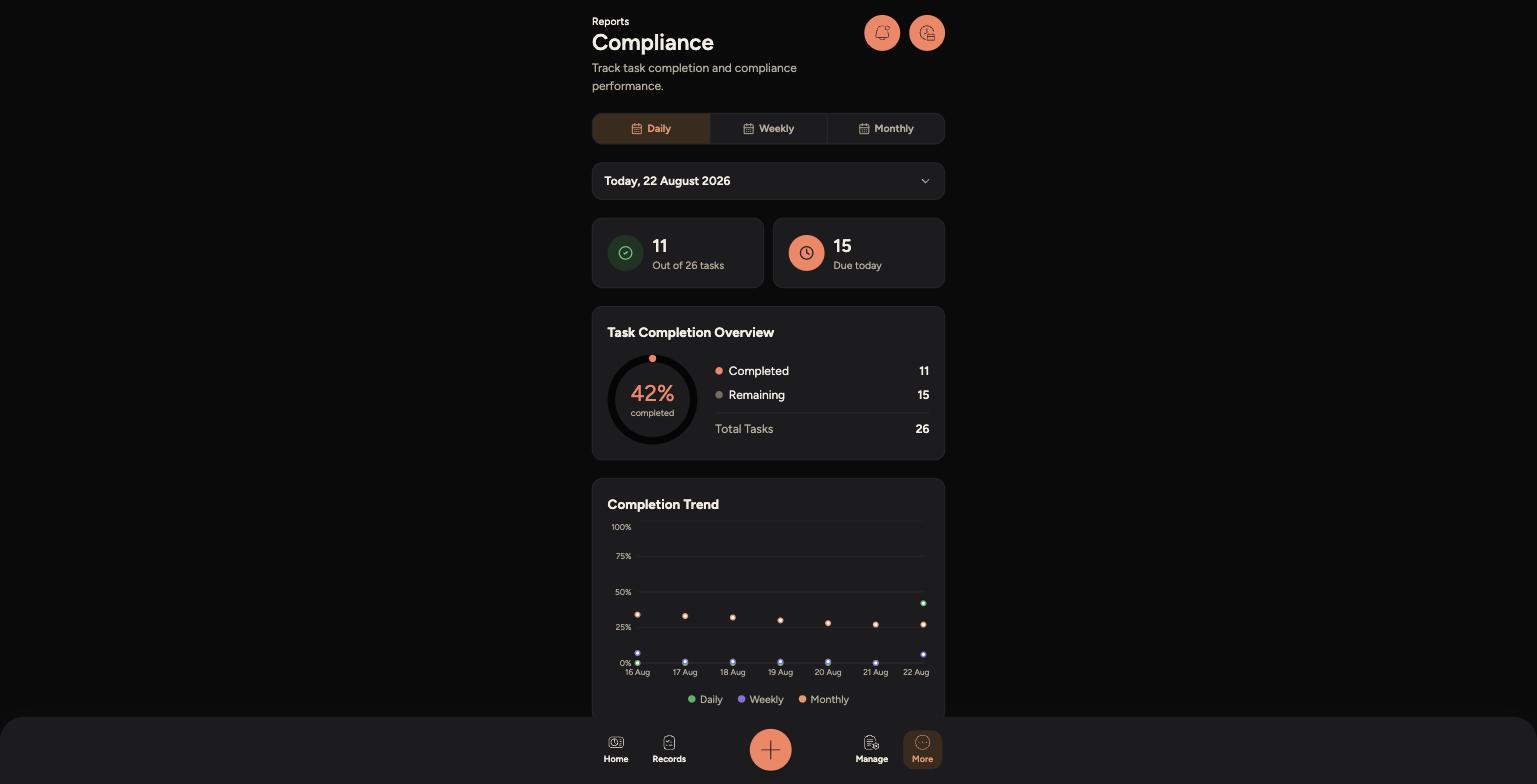
The top cards show how many tasks are completed and how many are still due for that period.
-
The Task Completion Overview shows your completion percentage, along with the number completed, remaining and total.
-
The Completion Trend chart shows how compliance has changed over recent days.
The Compliance report for today, showing completion percentage and trend
Tips
If today's percentage looks low early in the day, that's normal — many tasks aren't due until later, like Closing Checks.
Switch to Weekly or Monthly to see the bigger picture rather than just today's snapshot.
If the Completion Trend is dropping over several days, flag it to a manager — it may point to a task being missed regularly.