

Set a team member's contract type, hours, pay rate and holiday allowance so their rota, timesheets and payroll figures are accurate.
Steps
-
Go to Team, then "Team Management" and select the team member.
-
Open the "Pay & Contracts" tab.
-
-
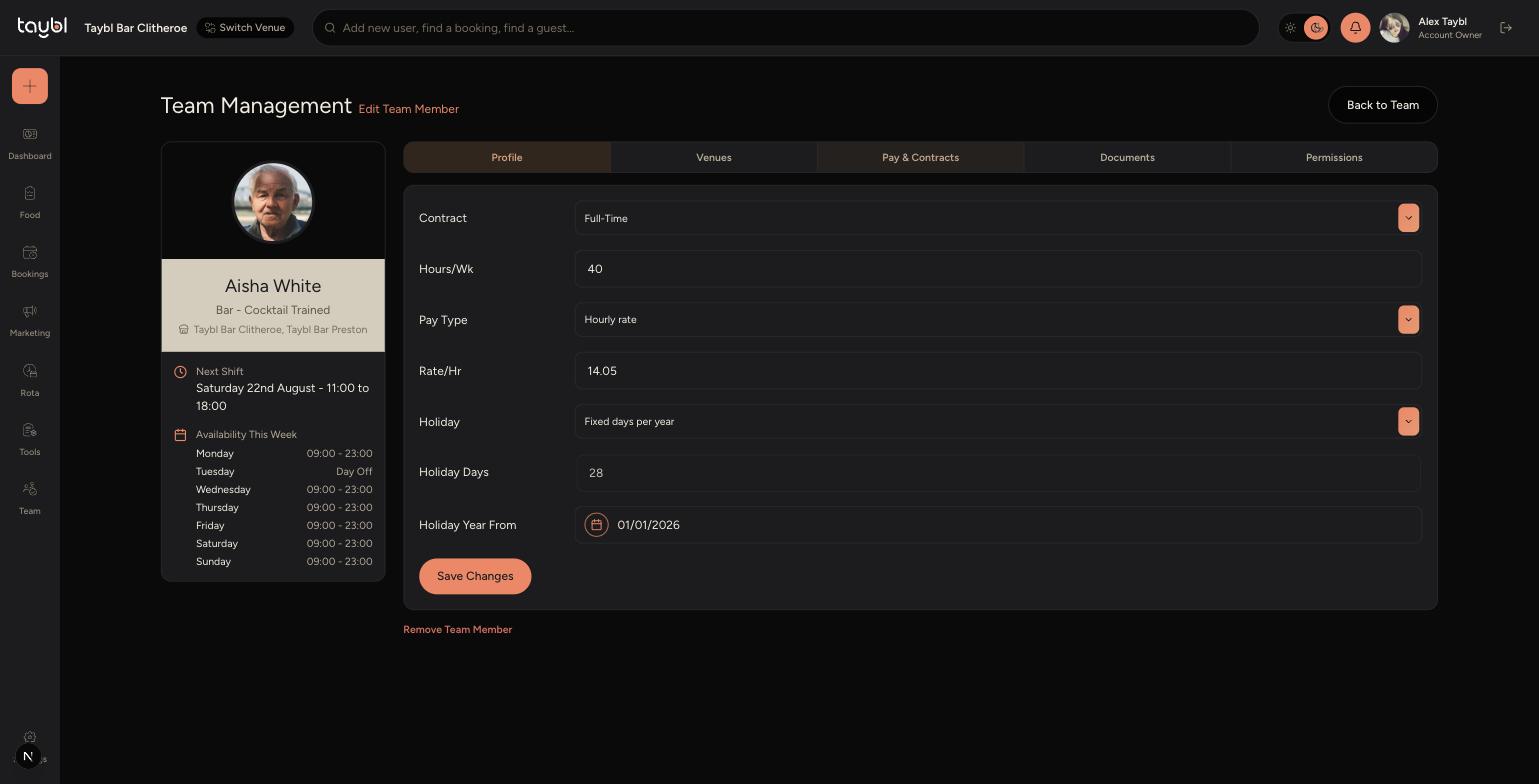
Set Contract to Full-Time, Part-Time or Zero-Hours, and enter their Hours/Wk.
-
Choose a Pay Type - Hourly rate or Annual salary - and fill in the Rate/Hr or Salary/Yr field that appears.
-
Set Holiday to either Fixed days per year or Accrued from hours worked, then enter their Holiday Days.
-
Set Holiday Year From to the date their holiday year starts.
-
Tap "Save Changes".
Tips
Hours/Wk and Rate/Hr feed into the estimated labour cost shown on the Weekly Rota Builder, so keeping these accurate helps you plan shifts against budget.
Choose "Accrued from hours worked" for Zero-Hours or casual staff whose holiday builds up as they work, rather than a fixed number of days upfront.
Holiday Year From doesn't have to match the calendar year - set it to whenever this team member's holiday entitlement actually resets.