

Export a payroll-ready summary of hours and pay for any date range, in a format your payroll provider can import.
Steps
-
Go to Rota, then "Payroll Export" in the sidebar.
-
Use the pencil icons next to Date From and Date To to set the pay period you want to export.
-
By default, pay is calculated only from weeks that have been fully approved on the Timesheets page - unapproved weeks show as "excluded" and don't count towards the total.
-
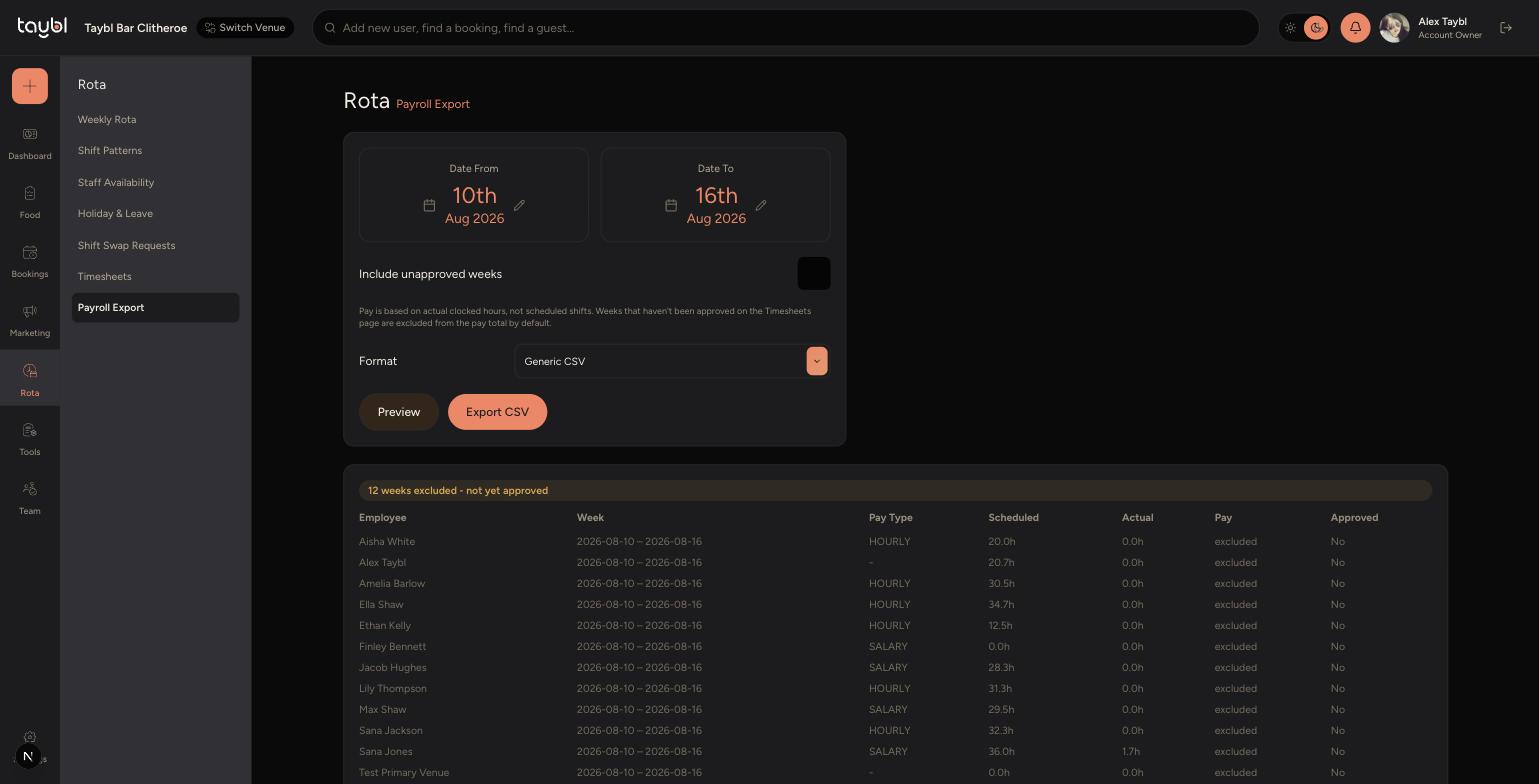
-
If you need to include weeks that haven't been approved yet, switch on "Include unapproved weeks".
-
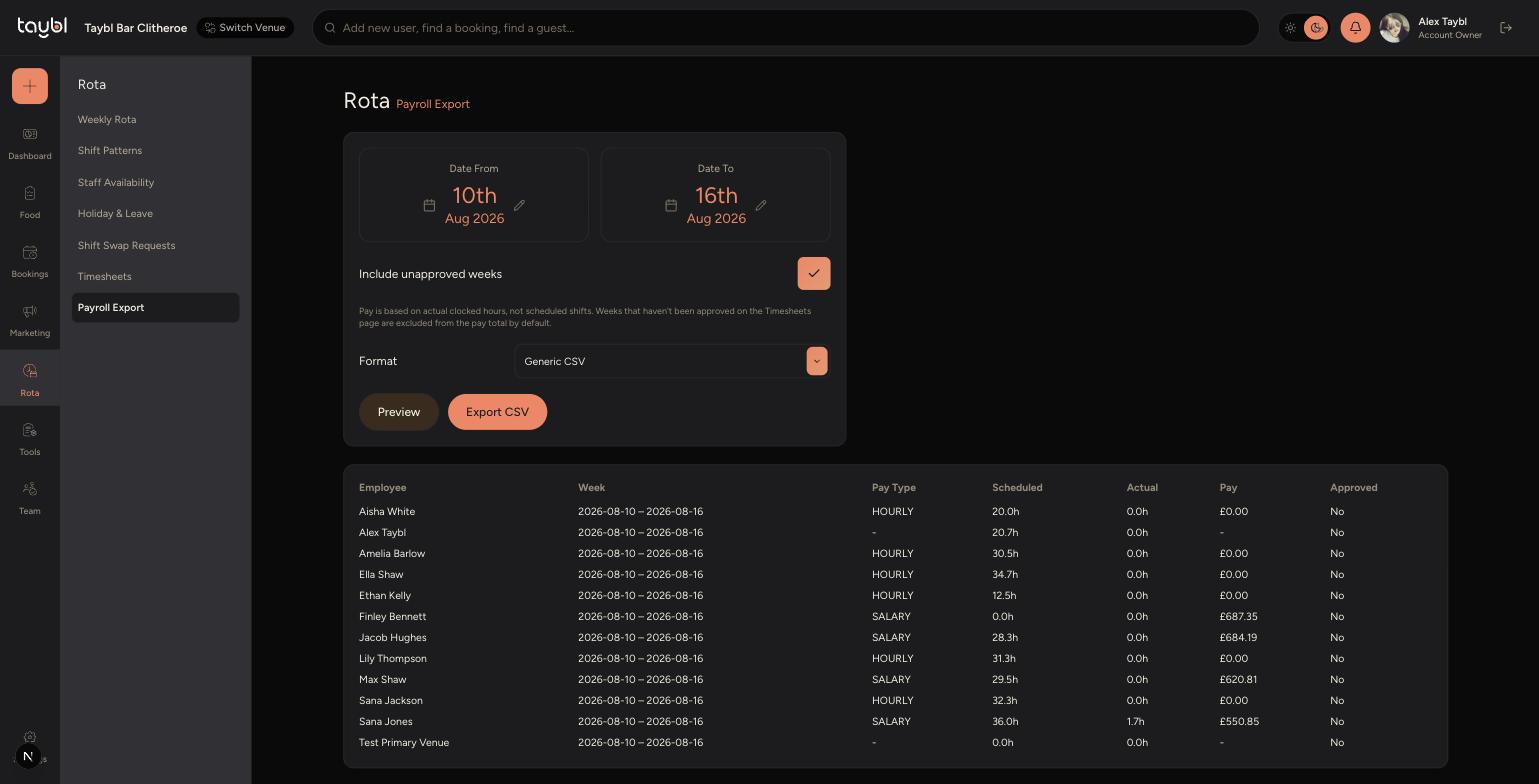
-
Choose a Format that matches your payroll provider: Generic CSV, Xero (Bills import), QuickBooks Online (Journal Entries import), or Sage Business Cloud (Journal import).
-
Tap "Preview" to check the figures on screen before exporting.
-
Once everything looks right, tap "Export CSV" to download the file and send it to payroll.
Tips
The export is based on actual clocked hours, not scheduled shifts, so a staff member's pay reflects the time they actually worked.
If a week you expect to see is missing figures, check whether it's still waiting on approval on the Timesheets page - approve it there first, or switch on "Include unapproved weeks" here.
Always use "Preview" to sanity-check the figures before exporting - it's much easier to catch a mistake here than after the file has gone to payroll.