

Update a team member's role, contract, documents and permissions from one place.
Finding a Team Member
Go to Team, then "Team Management" to see everyone at your venue. Use "Filter by User Type" or the venue filter to narrow the list, then click on a team member to open their profile.
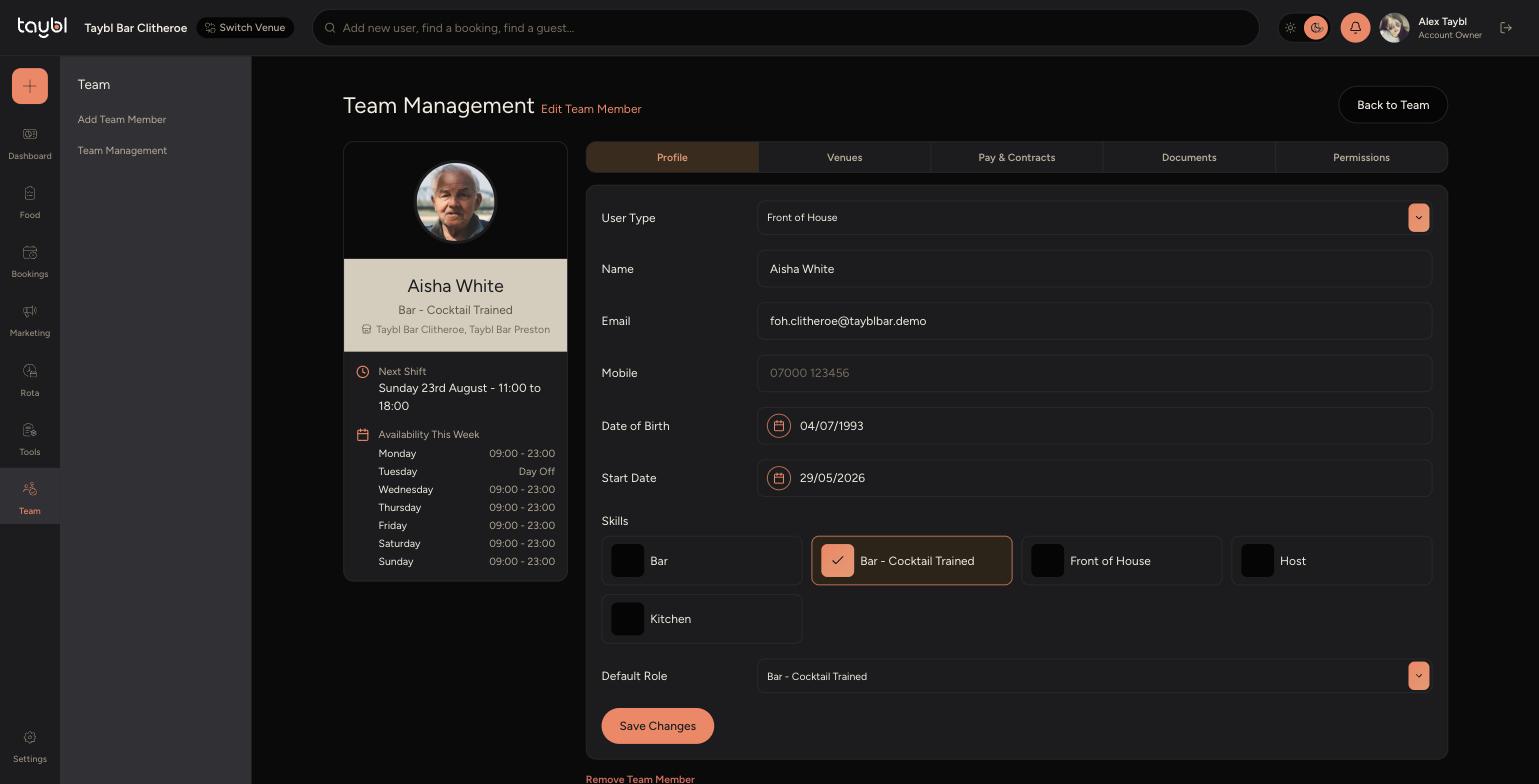
Their profile opens on five tabs, each covering a different part of their record.
The Five Tabs
-
Profile - User Type, contact details, Date of Birth, Start Date and Skills. Skills also set their Default Role for the rota.
-
Venues - which venues they can be scheduled at and their Primary Venue.
-
Pay & Contracts - Contract type, Hours/Wk, Pay Type and Rate, and their Holiday allowance.
-
Documents - upload and store files against their record, such as a Right to Work document, and click "Add A Document" to add more.
-
Permissions - what they can see and do inside the Kitchen, Front of House and Manager views of the Staff App, broken down by area such as Reports, Documents, Menu and Bookings.
Making Changes
-
Update the fields on any tab, then click "Save Changes" on that tab before switching to another one, changes on each tab save separately.
-
If someone leaves, click "Remove Team Member" at the bottom of any tab to take away their access.