
Flag clock-ins and clock-outs that happen away from the venue, so you can review them on the Timesheets page.
Steps
-
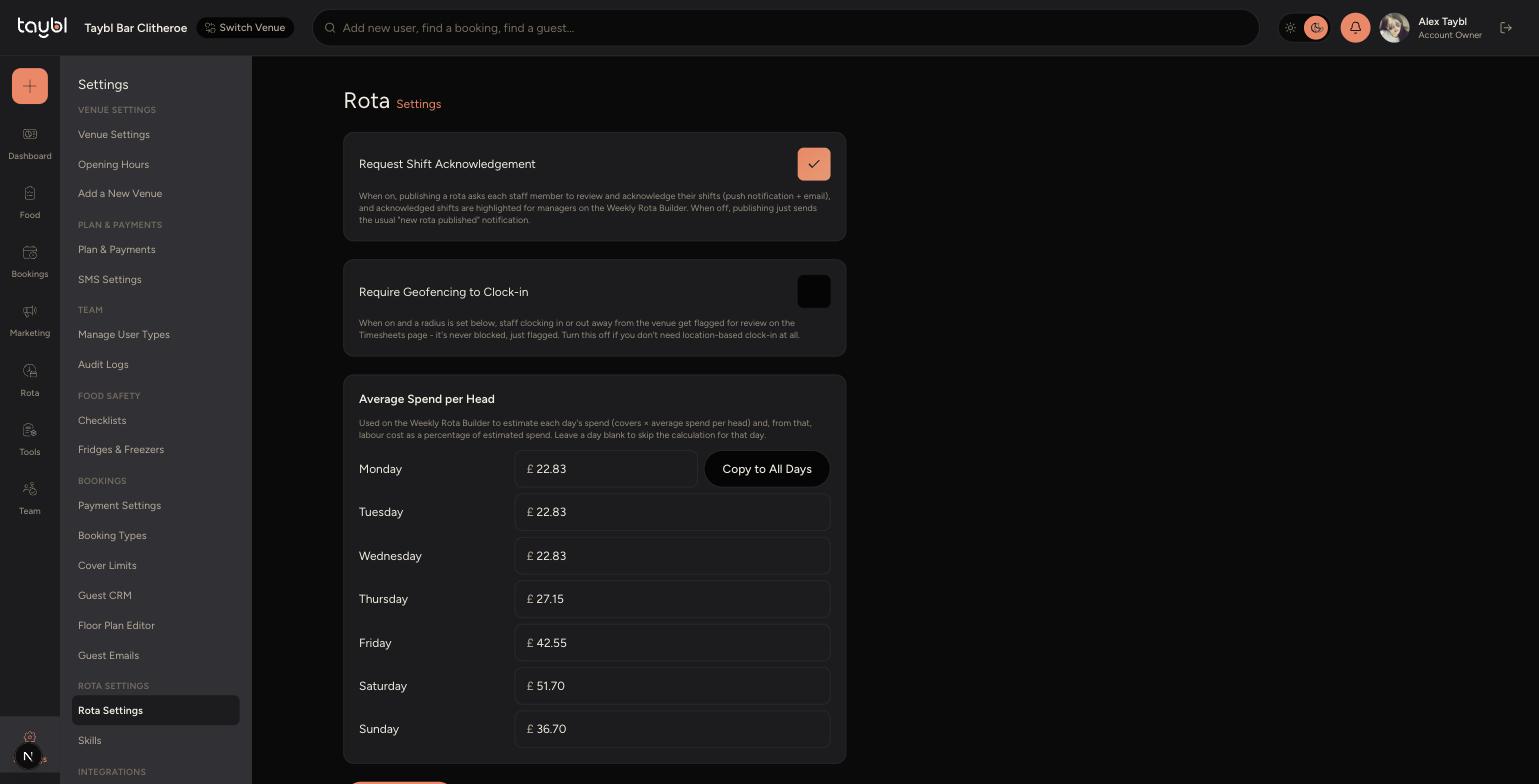
Go to Settings, then "Rota Settings" under the ROTA SETTINGS section.
-
-
Switch on "Require Geofencing to Clock-in".
-
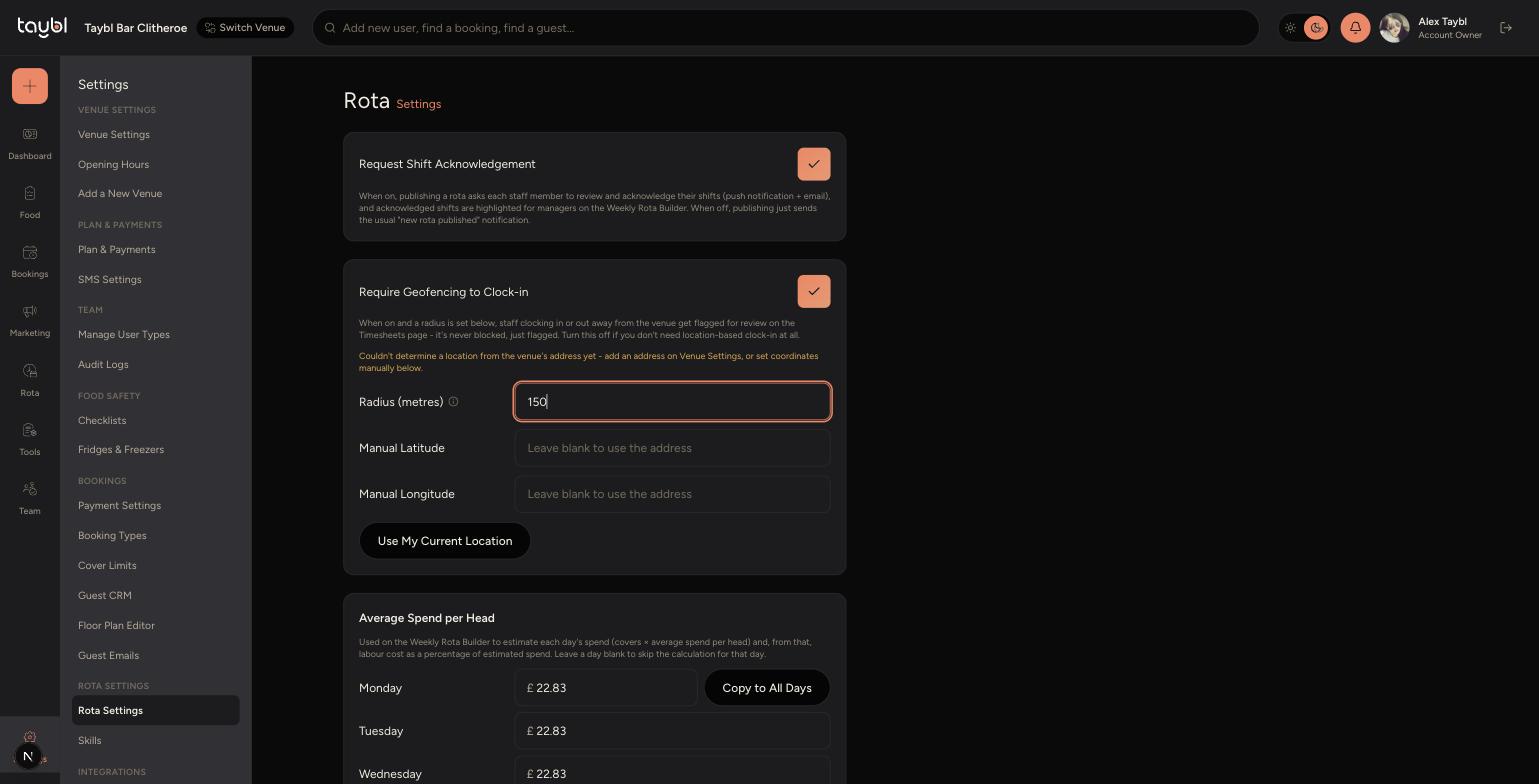
Enter a Radius in metres - this is how far from the venue a clock-in or clock-out can happen before it gets flagged.
-
-
The venue's location is normally taken from its address automatically. If that's not set, add an address on Venue Settings, or enter Manual Latitude and Manual Longitude here - the "Use My Current Location" button can fill these in for you.
-
Save your changes.
Tips
Geofencing never blocks a clock-in or clock-out - it just flags it for review on the Timesheets page, so staff can still clock in even if their location can't be confirmed.
If you leave the Radius field blank, Geofencing won't flag anything - a radius has to be set for it to take effect.
Make sure the venue's address is set correctly on Venue Settings first - it's the simplest way to get an accurate location without entering coordinates manually.