

Track maintenance issues raised by your team, from first report through to resolved, all in one place.
Viewing Tickets
Go to Tools, then "Maintenance" to see every ticket raised, newest first. Each ticket shows its Urgency and Status at a glance, and you can filter the list by venue or by status. Click a ticket to open its full details.
A Ticket's Details
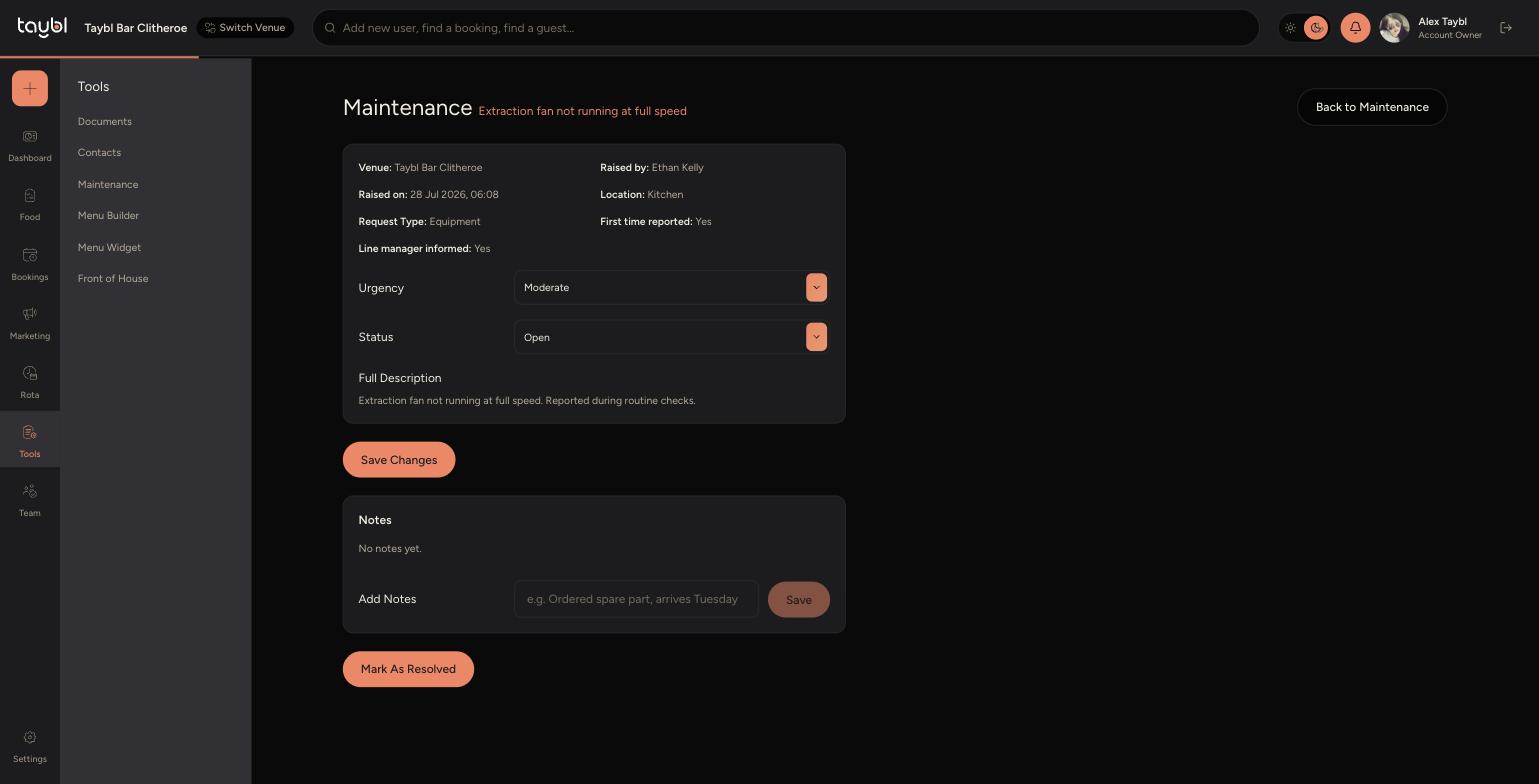
Opening a ticket shows who raised it, when, where (Location) and what kind of issue it is (Request Type), along with whether it's the first time this has been reported and whether the line manager has been informed. This information is fixed once the ticket is raised. The Full Description gives the details in the reporter's own words.
Updating a Ticket
-
Urgency and Status can both be changed from the ticket. Update them, then click "Save Changes".
-
Notes let you log progress, such as a spare part being ordered or a contractor booked in. Type your update under "Add Notes" and click "Save", it's added to the ticket with a timestamp, and previous notes stay visible underneath.
-
Once the issue is fixed, click "Mark As Resolved" to close the ticket out.