

Define the roles your venue schedules against and assign them to team members, so shifts, Open Shifts and Shift Swaps can be matched to the right people.
Steps
-
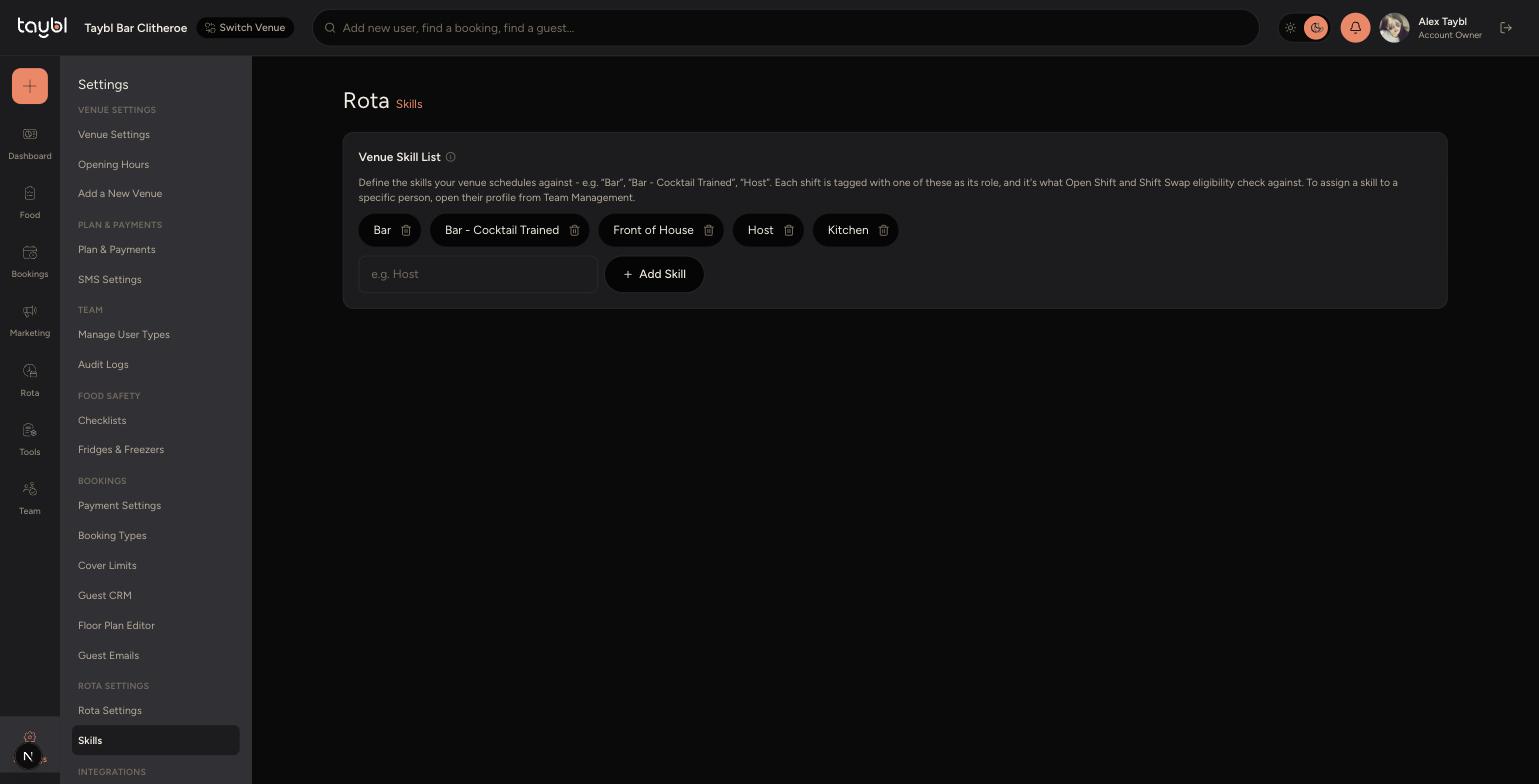
Go to Settings, then "Skills" under the ROTA SETTINGS section.
-
Type a skill name, such as "Host", into the field and tap "Add Skill" to add it to your venue's skill list.
-
Each shift on the rota is tagged with one of these skills as its role, and it's what Open Shift and Shift Swap eligibility check against - so keep the list matched to the roles you actually schedule.
-
-
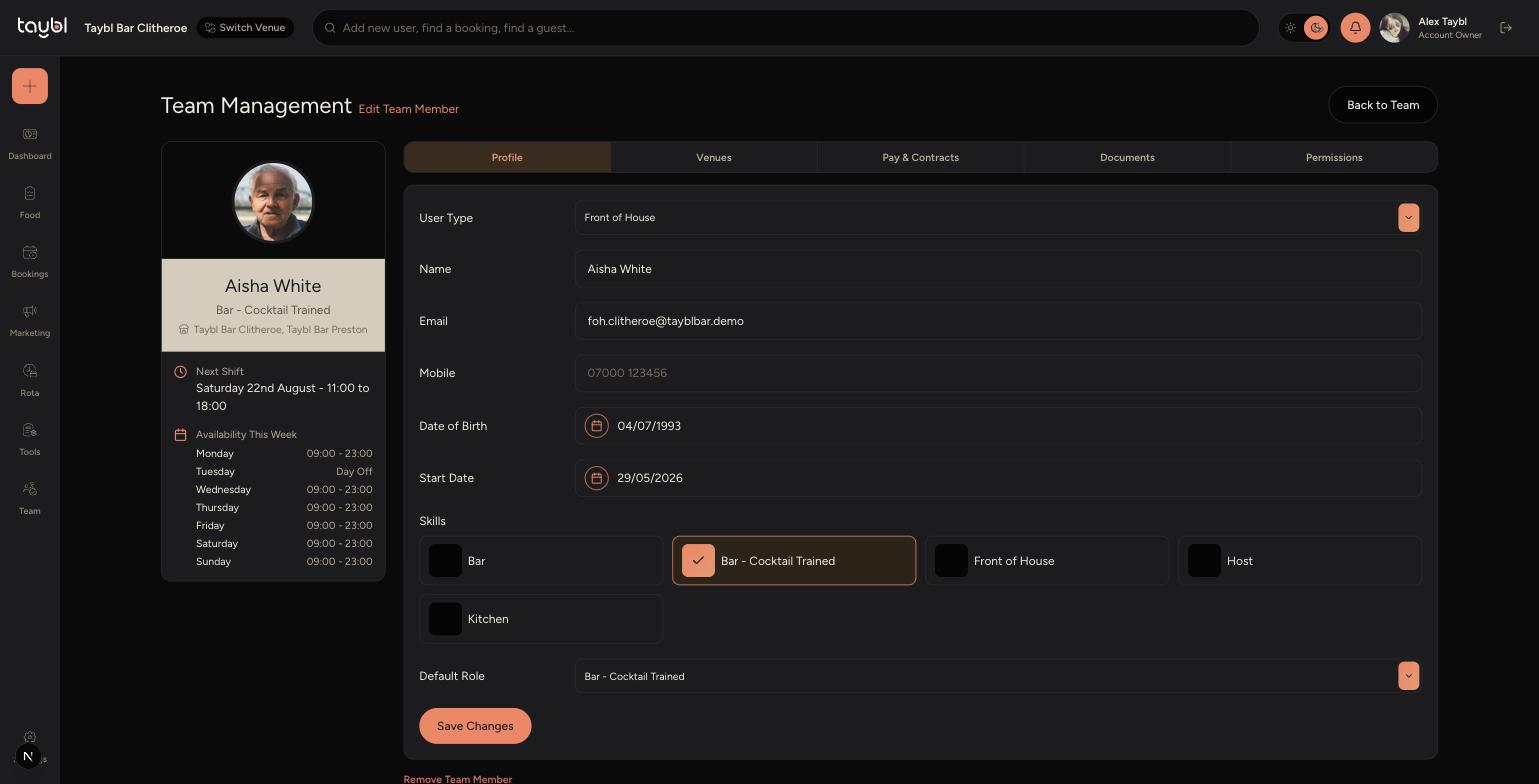
To assign a skill to a specific person, go to Team, then "Team Management" and open their profile.
-
On the Profile tab, tick each Skill that applies to them.
-
-
Set their Default Role from one of the skills you've ticked - this is the role used when scheduling them on the rota.
-
Tap "Save Changes".
Tips
A team member can hold more than one skill - for example, someone who can work both Bar and Front of House - but only one can be set as their Default Role.
Skills drive who's eligible for an Open Shift or a Shift Swap, so if someone can't see a shift they should be able to pick up, check they have the right skill ticked.
Keep skill names short and specific, like "Bar" or "Bar - Cocktail Trained", rather than long descriptions - they're used as labels throughout the rota.