

Closing Checks is a swipeable checklist you complete at the end of the day, answering Yes, No or N/A to each question.
Steps
-
From the Home screen, tap Closing Checks, or go to Manage > Checklists > Closing Checks.
-
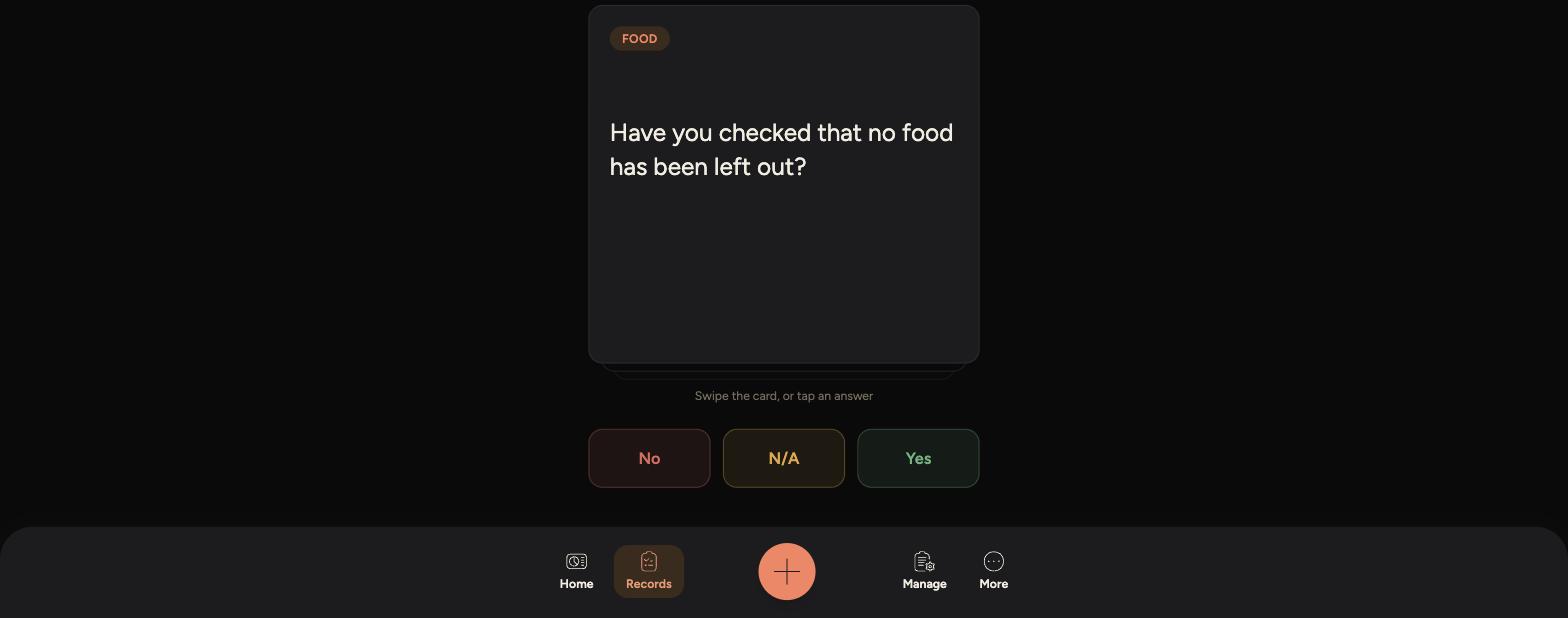
Read the question shown on the card, which is tagged by category such as Food.
-
-
Tap Yes, No or N/A to answer, or swipe the card left or right.
-
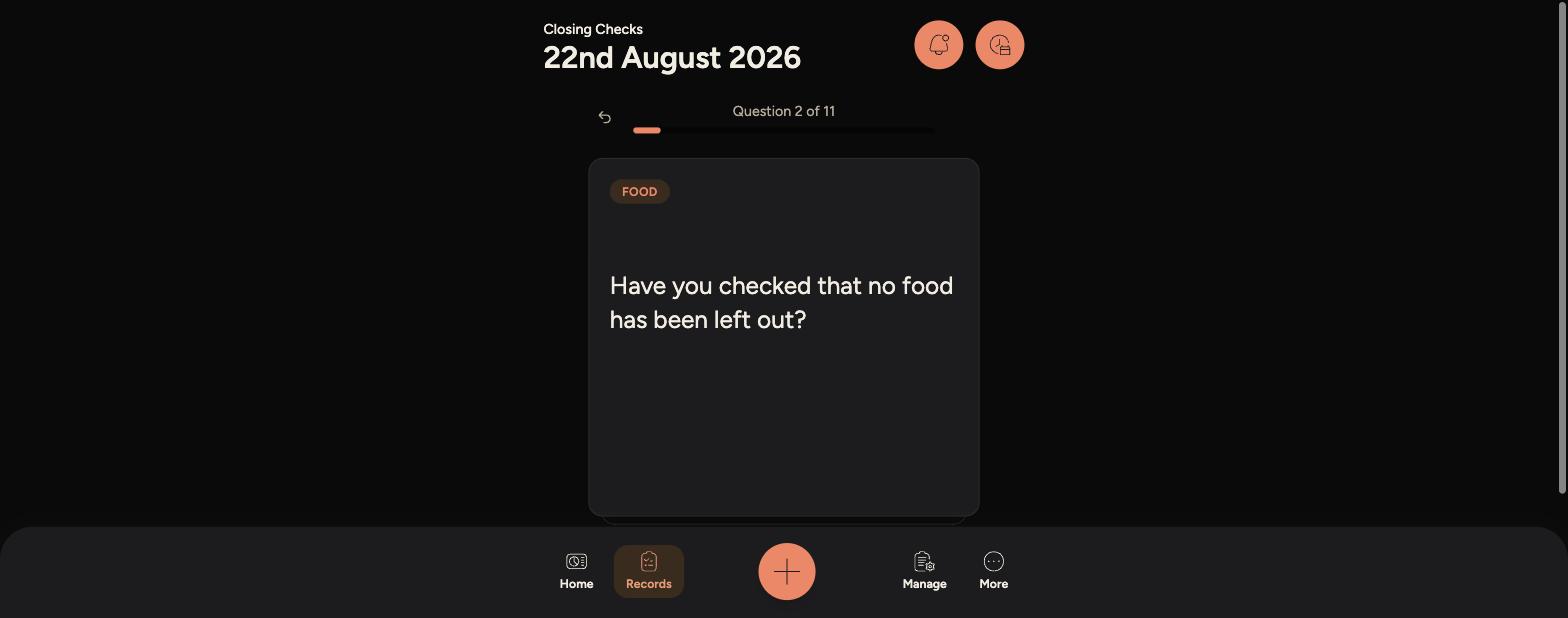
Keep answering until you've worked through all the questions - the counter at the top shows your progress, such as Question 1 of 11.
-
-
Once every question is answered, the checklist is marked complete for the day.
If you're not sure about a question, use N/A rather than guessing Yes - it keeps the record accurate.
Use the back arrow above the card if you need to go back and change a previous answer.
Completed checklists are saved under Records > Closing Checks, so you can look back at any day's results.