

The Records screen lets you look back at completed checks, logs and records for any day, so you can review what was done and by whom.
Steps
-
Go to Manage > Records, or tap Records in the bottom navigation.
-
Use the date bar at the top to pick the day you want to look back at.
-
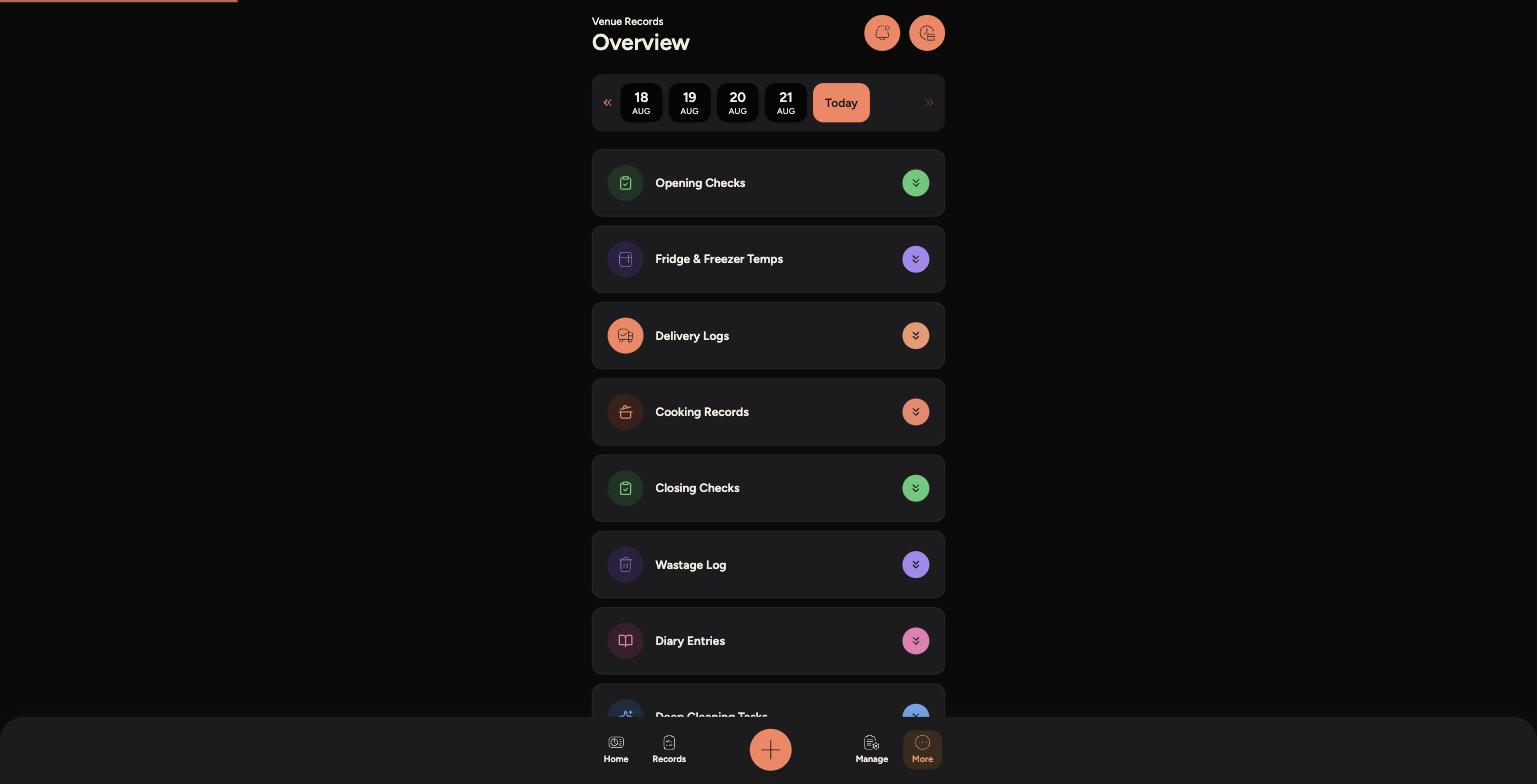
You'll see a card for each record type — Opening Checks, Fridge & Freezer Temps, Delivery Logs, Cooking Records, Closing Checks, Wastage Log, Diary Entries and Deep Cleaning Tasks.
-
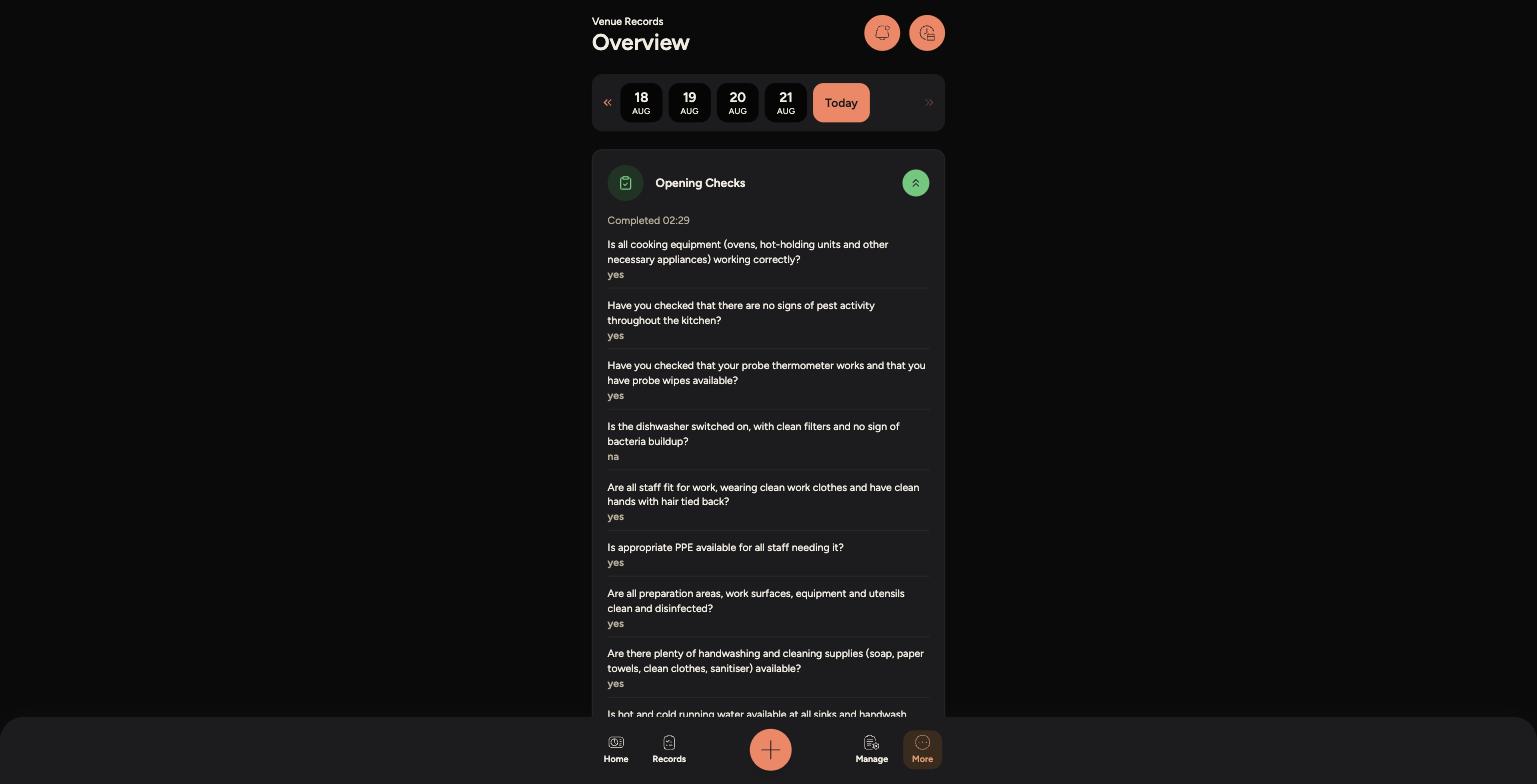
Tap the arrow on a card to expand it and see everything logged that day, including who completed it and when.
The Records overview, with a card for each record type
An expanded Opening Checks record showing full answers
/
Tips
Use this to double-check a check was actually completed, or to see the exact answers given if a manager asks about a specific day.
If a card looks empty for a date, it likely means that check wasn't completed that day.
Past records can't be edited from here — they're a read-only history of what was logged.