

Fridge and freezer temperatures are logged from the Staff App at set points in the day, so you always have an accurate record for food safety checks.
Steps
-
From the Home screen, tap the temperature check task, such as Fridge Temps, or go to Manage > Temperature Checks > Fridge Temperatures.
-
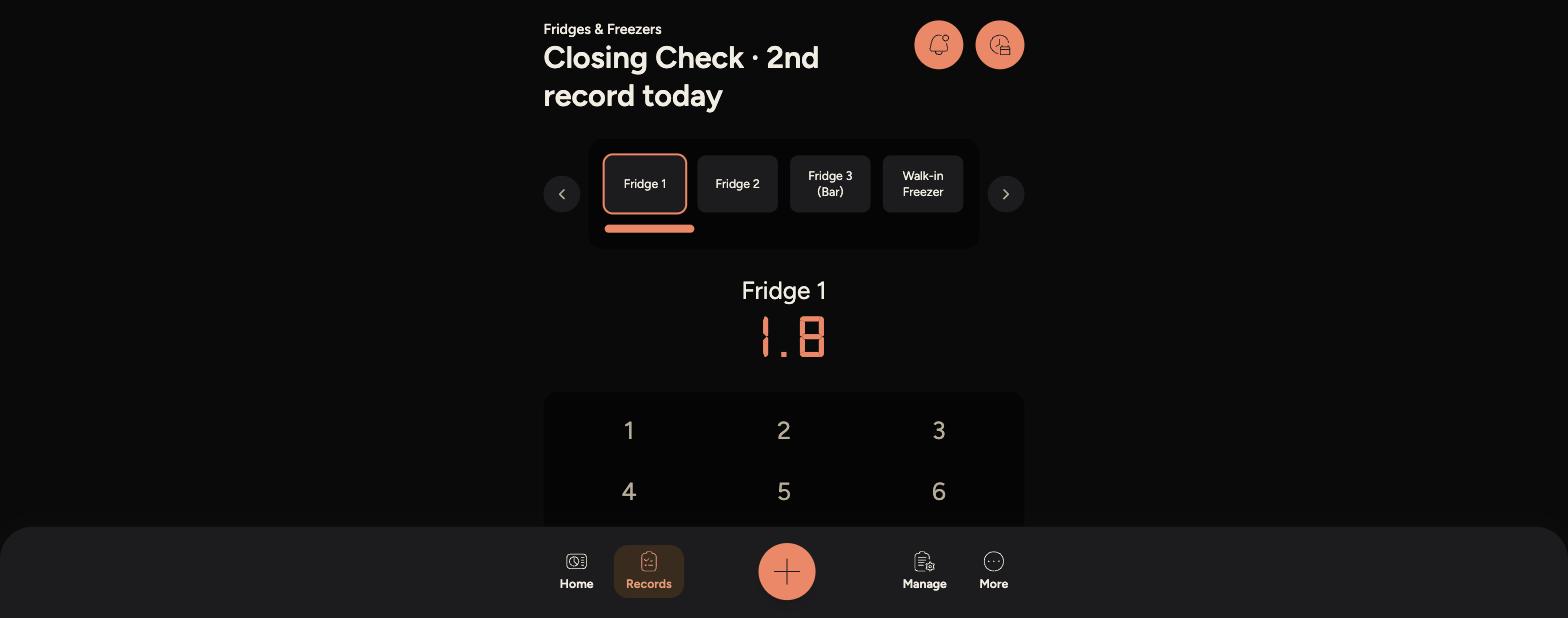
Use the tabs at the top to select which fridge or freezer you're recording, such as Fridge 1 or Walk-in Freezer.
-
-
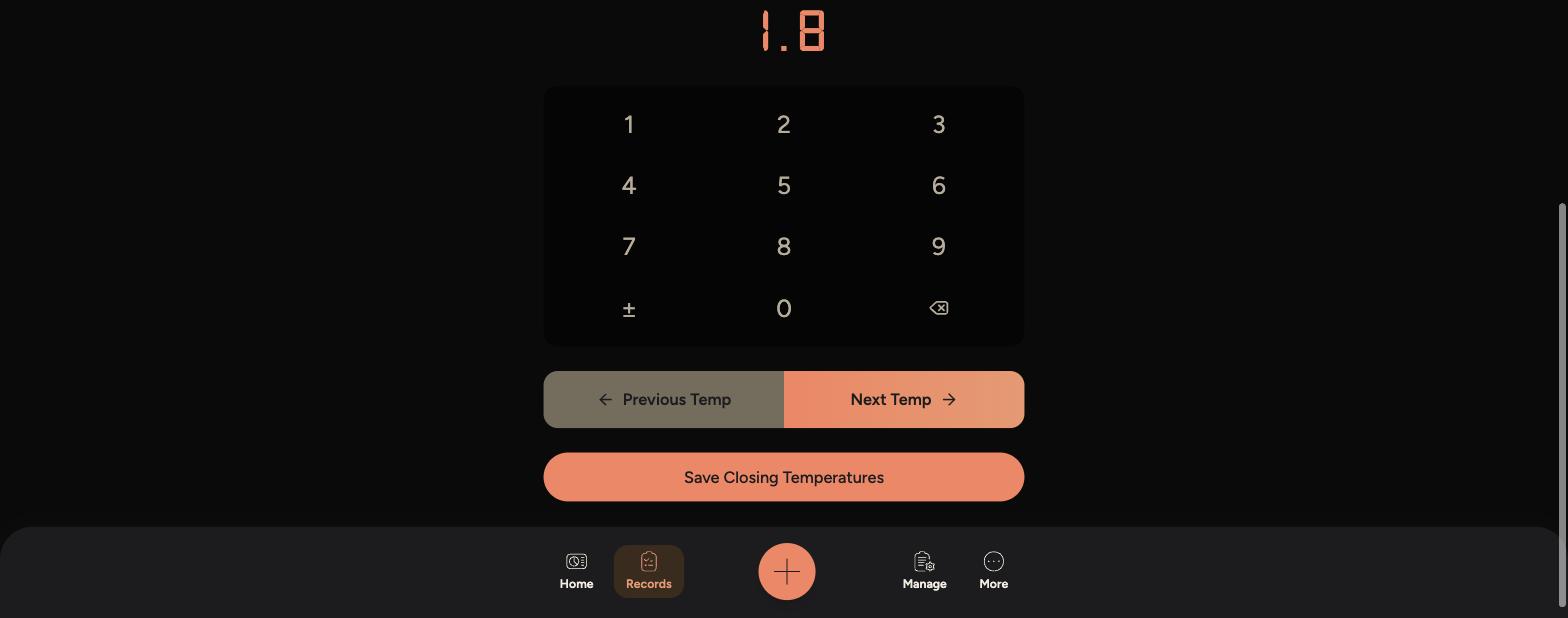
Enter the temperature using the keypad. Tap the ± symbol if the reading is below zero.
-
Tap Next Temp to move on to the next unit, or Previous Temp to go back and check a reading.
-
Once every unit has a reading, tap Save Closing Temperatures (or Save Opening Temperatures) to submit the check.
-
The task on Home shows how many units are still due today, so you can see at a glance whether opening or closing checks still need doing.
If a reading falls outside the safe range, record it as normal and let a manager know so it can be actioned.
Saved temperature checks appear under Records > Fridge & Freezer Temps, so you can look back at previous readings at any time.