

Check clocked hours against scheduled hours, spot anything unusual, and approve timesheets ready for payroll.
Steps
-
Go to Rota, then "Timesheets" in the sidebar.
-
Use the arrows either side of the date range to select the week you want to review.
-
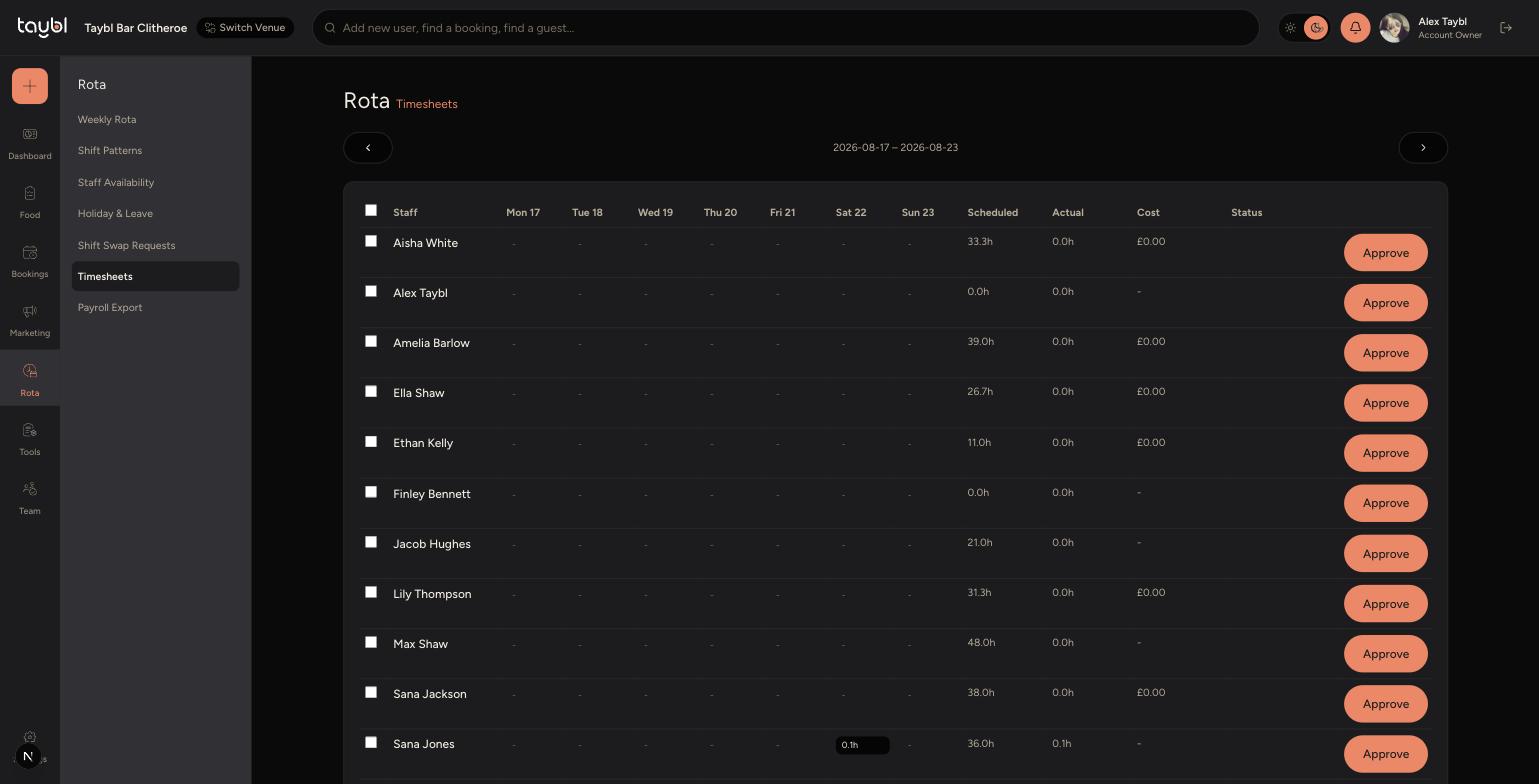
Each team member's row shows their Scheduled hours, Actual hours worked, Cost and Status for the week, with a day-by-day breakdown across the columns.
-
-
Tick the checkbox next to a team member to select their timesheet, or tick the header checkbox to select everyone at once.
-
Once you've selected the timesheets you want to sign off, tap "Approve X Timesheets" to approve them together.
-
To approve just one person's timesheet without selecting anyone else, tap the "Approve" button on their row instead.
Tips
Timesheets compare Scheduled hours against Actual hours worked, so a big gap between the two is usually the first thing worth checking before you approve.
If Geofencing is switched on in Rota Settings, any clock-in or clock-out that happens away from the venue is flagged here for review, so check those rows before approving.
Once a timesheet is approved it feeds through to payroll, so it's worth reviewing the full week before using the bulk "Approve" option.