

The Weekly Rota Builder is where you drag and drop staff onto shifts, see who's available, and keep an eye on labour cost for the week.
Steps
-
Go to Rota, then "Weekly Rota" in the sidebar.
-
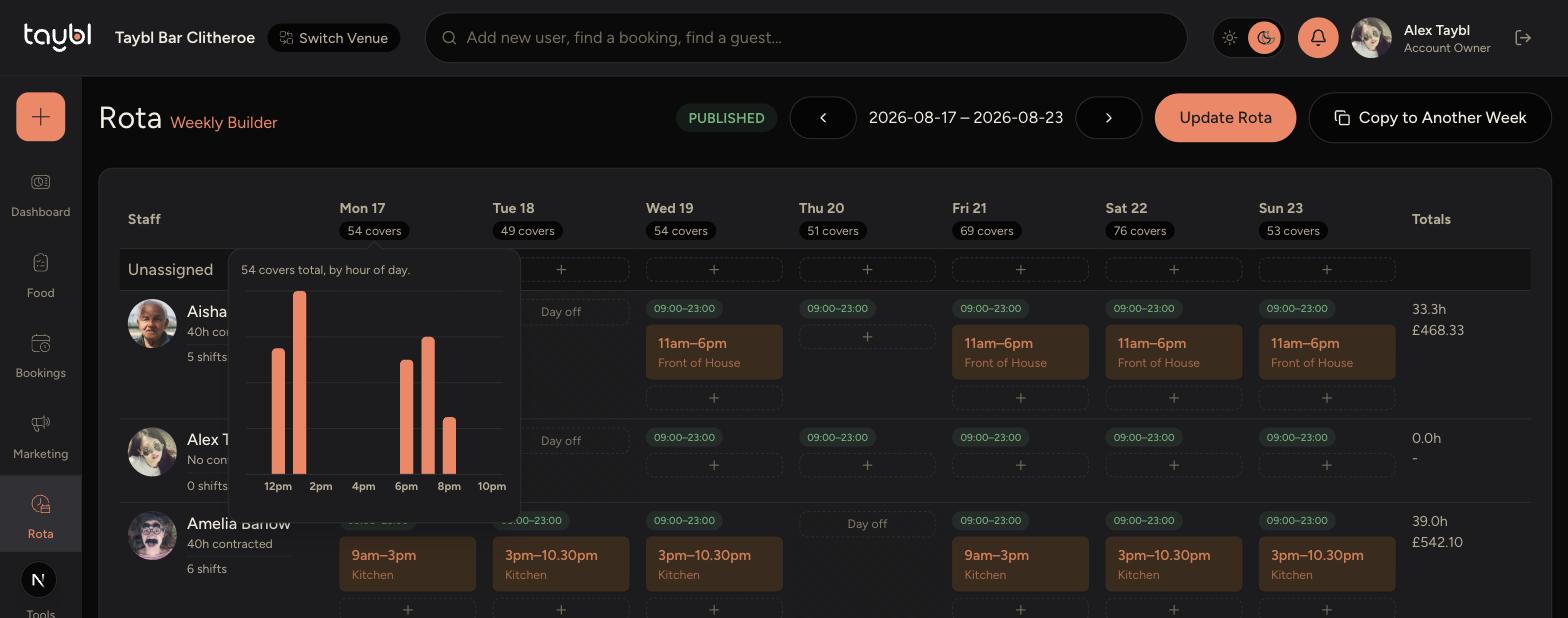
Use the arrows either side of the date range to move between weeks. Staff are listed down the left, with each day of the week across the top.
-
Each day's column shows the total covers booked for that day. Hover over a covers total to see a chart of bookings by hour, useful for judging when you need extra cover.
-
-
Each staff member's availability for the day appears above their row, or "Day off" if they're not available that day.
-
Tap the "+" under a day to add a shift for that staff member, or drag an existing shift to move it to another day or person.
-
When you're happy with the rota, tap "Update Rota" at the top to save and publish it to staff.
Tips
Unassigned shifts sit in a row at the top of the grid, so you can spot anything that still needs a team member before publishing.
The Totals column on the right shows each team member's hours and estimated pay for the week, so you can check contracted hours are being met.
Use "Copy to Another Week" to duplicate the whole rota to a future week instead of rebuilding it from scratch.