

Build the menus guests see on the Booking Widget and pre-order pages, either by adding dishes yourself or by pulling them straight from your Recipe Cards.
Getting Started
-
Go to Tools, then "Menu Builder".
-
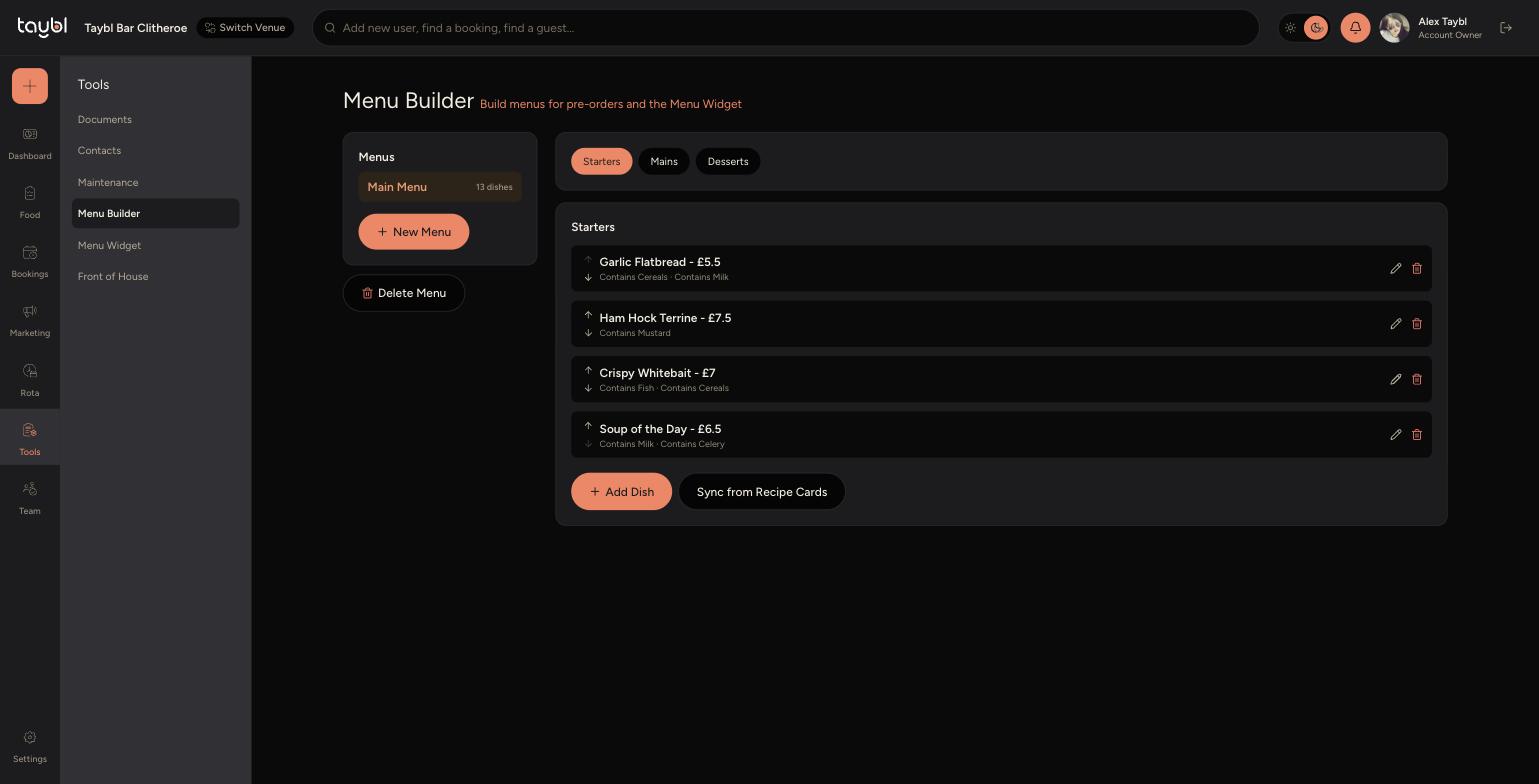
- Pick a menu from the list on the left, or click "New Menu" to start one from scratch.
-
- Use the tabs (such as Starters, Mains, Desserts) to switch between menu sections.
-
- Under a section, you'll see the dishes already added, plus an "Add Dish" button and a "Sync from Recipe Cards" button, the two ways to build out a menu.
Adding a Dish Yourself
Click "Add Dish" and fill in the details.
-
Dish name and Price (price is optional, useful for pre-order-only items).
-
Dietary - tick any that apply (Vegan, Vegetarian, Pescatarian, Gluten Free), shown to guests as badges.
-
Allergens - tick every allergen the dish contains, this drives the allergy information guests see.
-
Recipe Card Variations - optionally attach a variation managed on the Recipe Card Variations page, so the dish stays linked to that recipe.
-
Dish-Specific Options - add one-off choices just for this dish, such as "How would you like it cooked?", with your own comma-separated choices.
-
Click "Add Dish" to save it to the menu.
Syncing from Recipe Cards
-
If a dish already exists as a Recipe Card, you don't need to re-enter it. Click "Sync from Recipe Cards", tick the dishes you want to add to this section, and they're pulled in with their name and price already filled in.
-
This is the fastest way to build a menu if your dishes are already documented as Recipe Cards elsewhere in Taybl.
Managing Dishes
-
Use the up and down arrows next to a dish to reorder it within the section.
-
Click the pencil icon to edit a dish's details.
-
Click the bin icon to remove a dish from the menu.