

Every delivery is logged from the Staff App as it arrives, recording temperatures and checks so there's a full food safety record.
Steps
-
From the Home screen, tap Delivery Log, or go to Manage > Logs > Delivery Logs, then tap New Delivery.
-
-
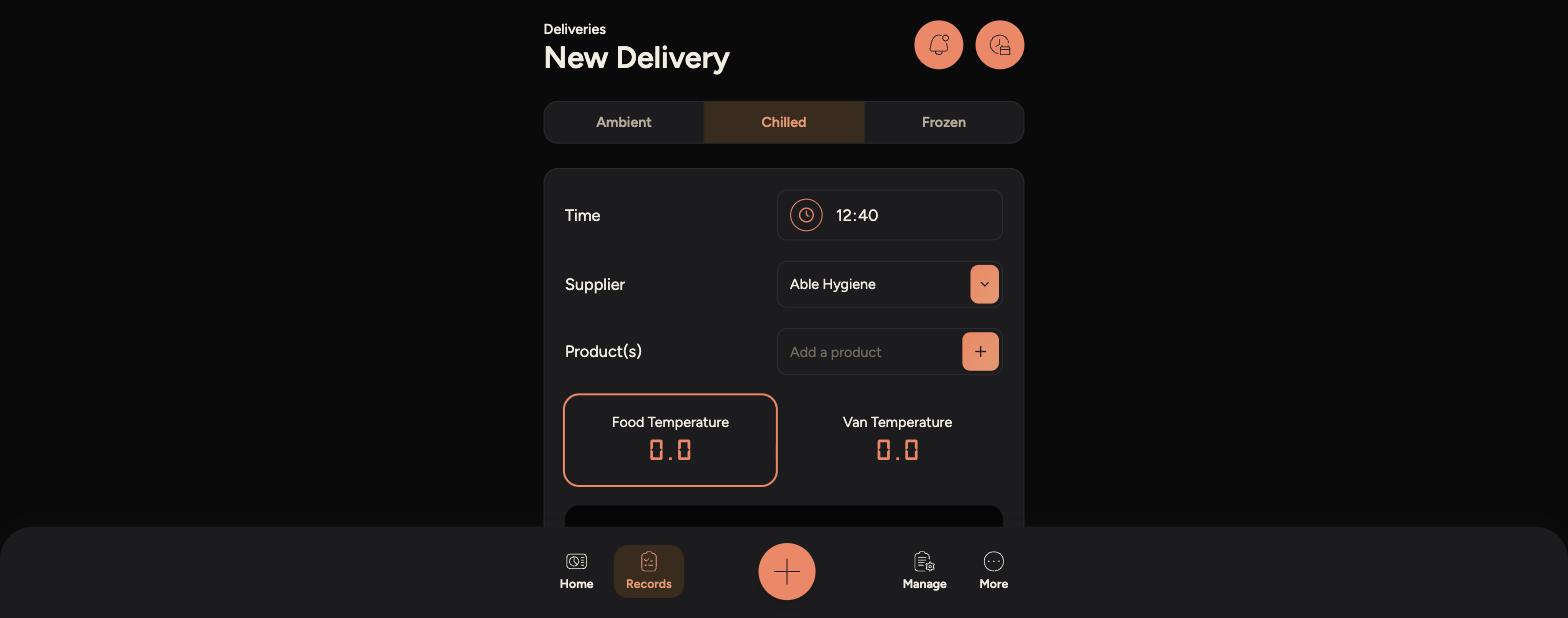
Choose the delivery type - Ambient, Chilled or Frozen.
-
Check the Time is correct, then select the Supplier from the dropdown.
-
Tap Add a product to list what's been delivered.
-
Enter the Food Temperature and Van Temperature using the keypad.
-
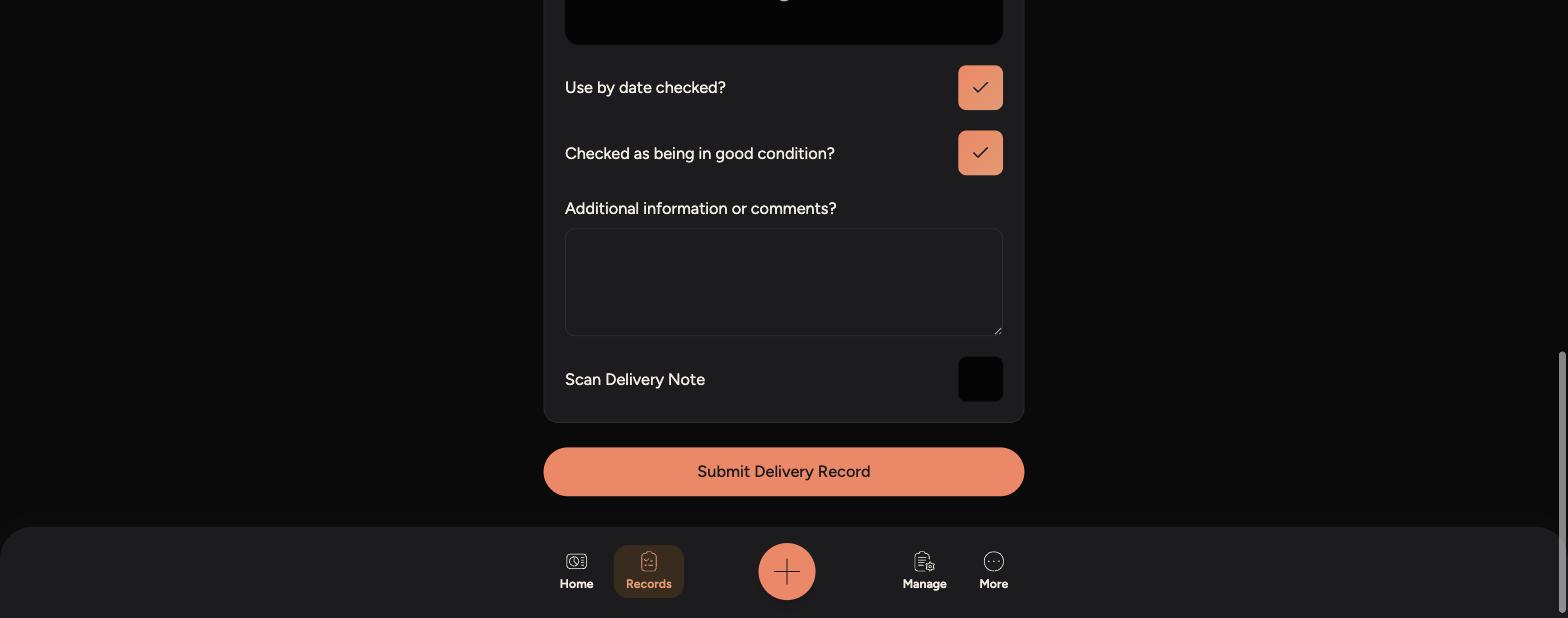
Confirm the use-by dates have been checked and the delivery is in good condition using the tick boxes.
-
Add any Additional information or comments, and scan the delivery note if you have one.
-
-
Tap Submit Delivery Record to save it.
If a delivery fails a check - wrong temperature, damaged packaging, an expired use-by date - reject it and let a manager know before it goes into storage.
You can add more than one product to a single delivery record if several items arrived together.
Delivery records are saved under Records > Delivery Logs, so you can check what's been received on any given day.