

View Records lets you look up any day's compliance history across your venues, and export it as a file when you need records for an inspection or audit.
Steps
-
Go to Food Safety > View Records in the sidebar.
-
Use the Date picker and Venue selector to browse a specific day's records.
-
Switch to the Export tab to export records instead of just viewing them.
-
Set a date range, venue and users to include in the export.
-
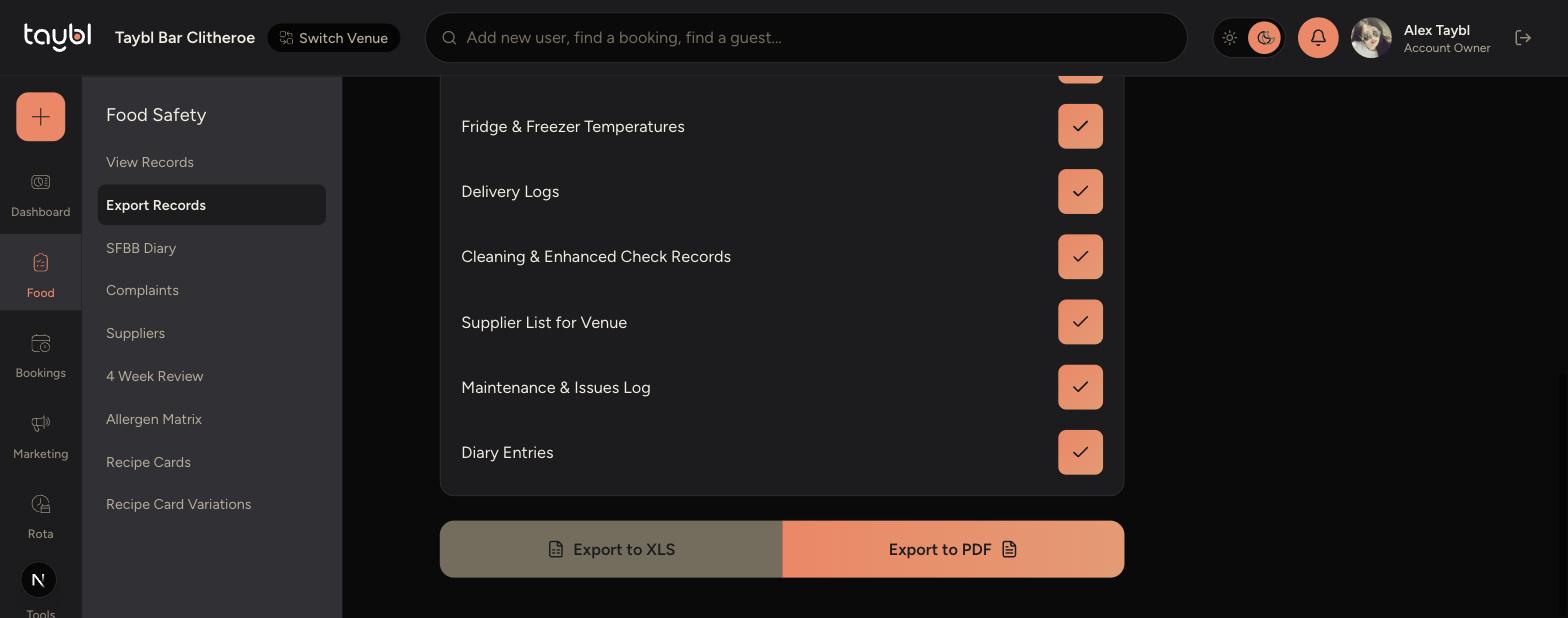
Toggle which record types you want to include.
-
Tap Export to XLS or Export to PDF to download the file.
-
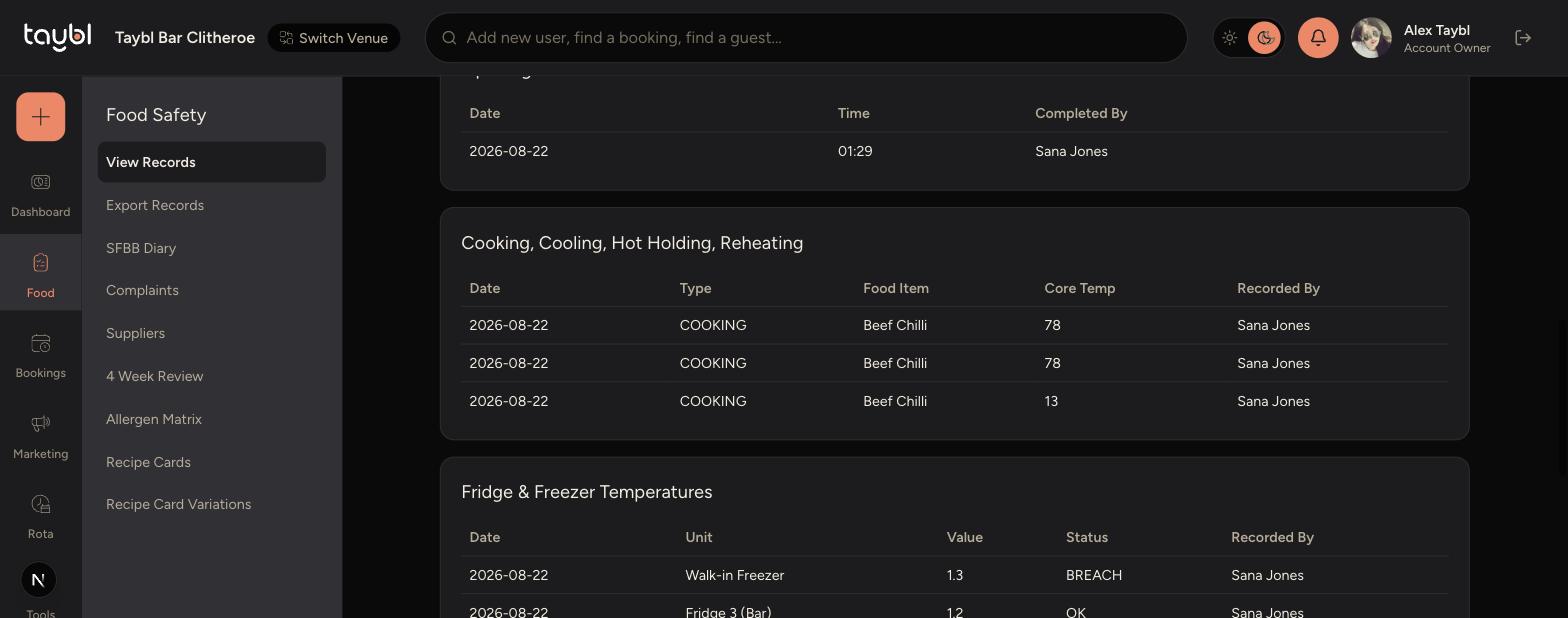
-
Switch to the Export tab, choose your date range, venue and users.
-
Toggle which record types you want to include.
-
Tap Export to XLS or Export to PDF to download the file.
Tips
Use Export to PDF when you need a ready-to-print copy for an inspector, and Export to XLS if you want to review or filter the data further on a computer.
Toggling off record types you don't need keeps the exported file focused on just what you're looking for.
Exported files download to your browser's downloads folder, ready to attach to an email or print.